Build a model from an unsegmented scan with Blueprint Design/Align teeth
This is an edge case best suited for motivational mock-ups or additive composite designs, but it is also a great way to ensure you can generate a model when the segmented scan cannot meet the previously described requirements.
Workflow:
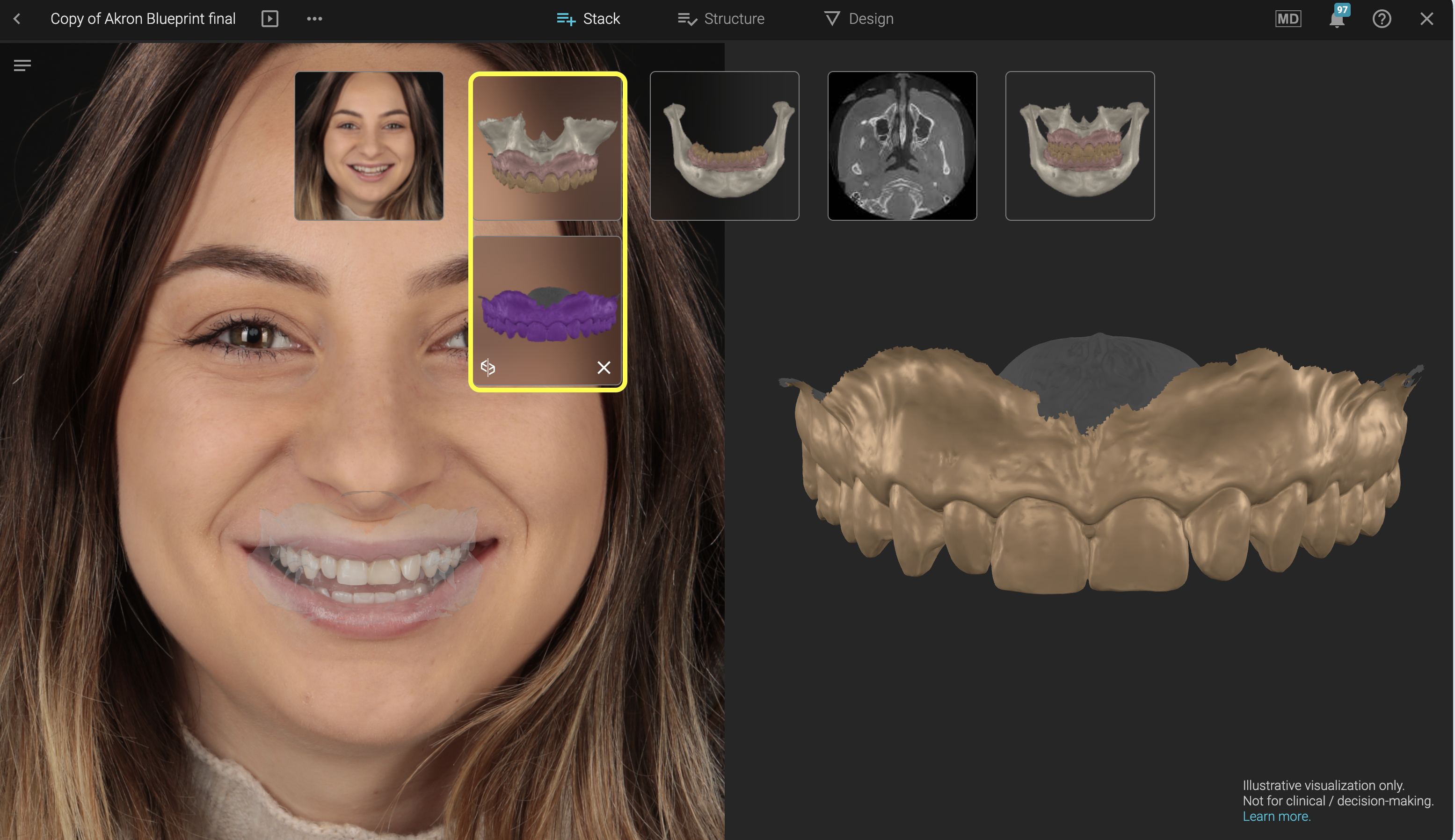
1. Send a blueprint design to review. Regardless of what elements the blueprint contains, make sure you export the design/align teeth group.
- If your design is additive and no sculpting is required of the initial scan, you can add it directly to the newly created Review project.
- If your design is not additive, add the initial, unsegmented scan as an additional scan in the Blueprint. Select the additional scan and do any operations you need here, using the Brush tools. Send the sculpted scan along with the design teeth to Blueprint. Alternatively you can make the required changes to the scan in a software of your choice, upload it in your case and add it to the Review project.
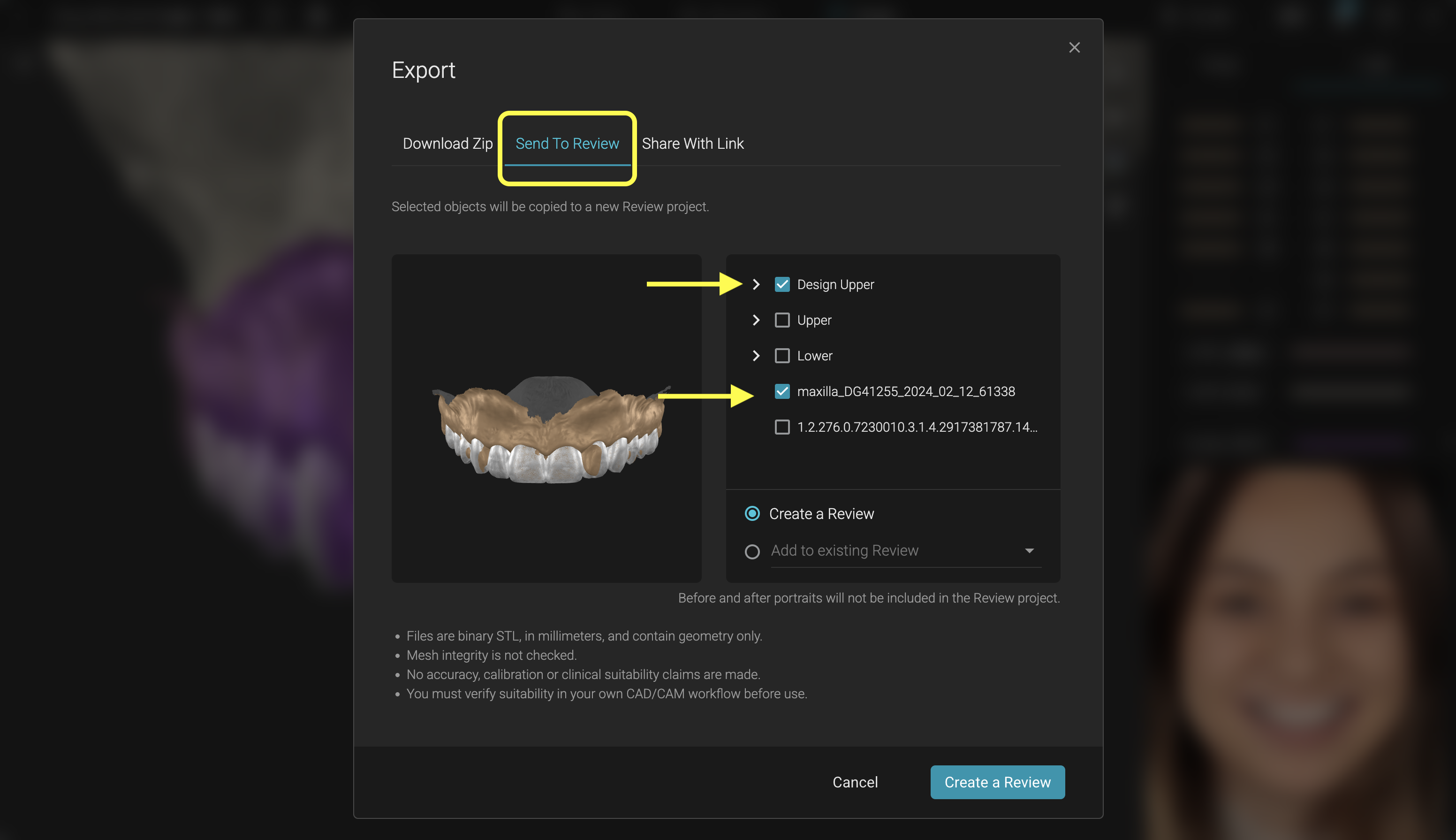
2. In the Review project you should have the unsegmented scan with or without sculpting on it and the design teeth.
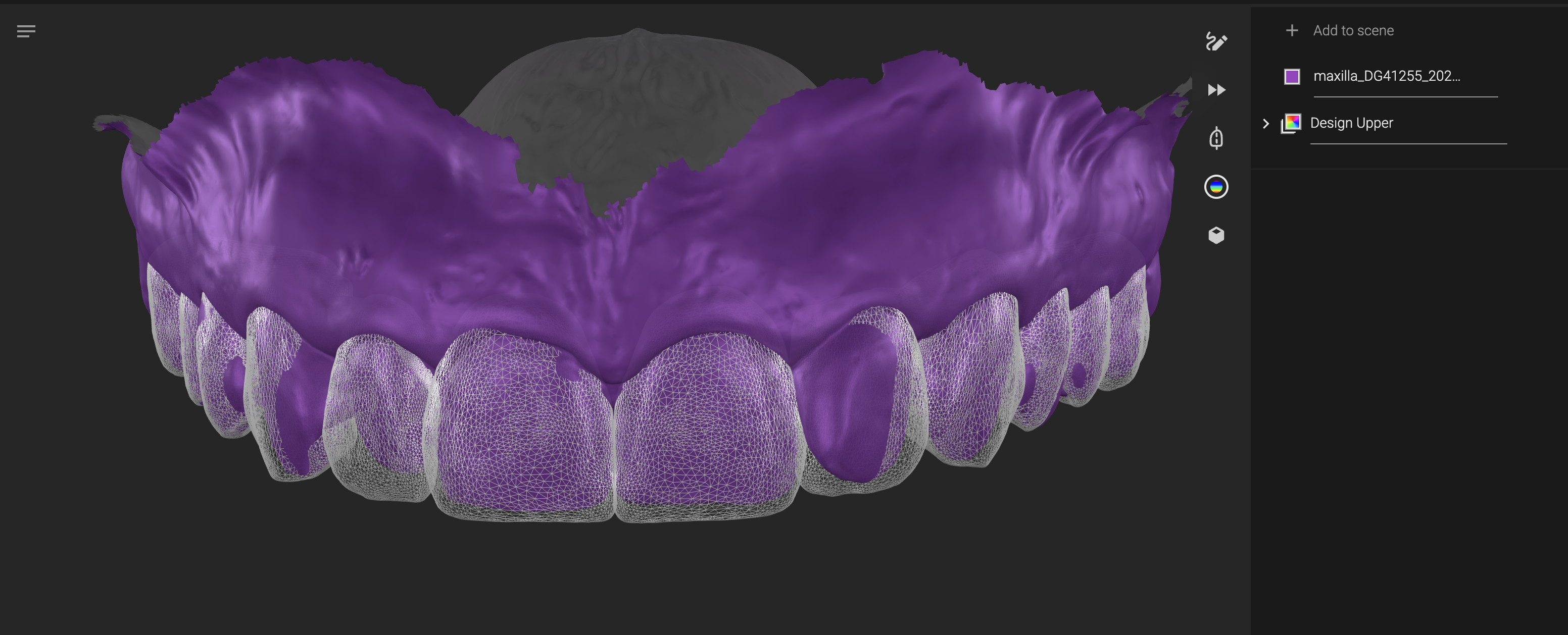
3. Open the Model Builder tool.
4. First, select the unsegmented scan.
- If the scan is sent to Review from a Blueprint, Model Builder will automatically know if it is an upper/lower scan.
- If the scan is added directly to the Review, select the correct option for it (Upper/Lower)
5. Once the Upper/Lower option is selected, the "Build Model" button appears. Do not press it just yet. You will also see the checkbox appear next to the compatible Blueprint groups.
6. Second, select the blueprint group you just exported. If you want to remove any teeth from the selected blueprint group, press on the dropdown and uncheck the element you want to remove.
7. Once you are happy with the selection, press Build Model
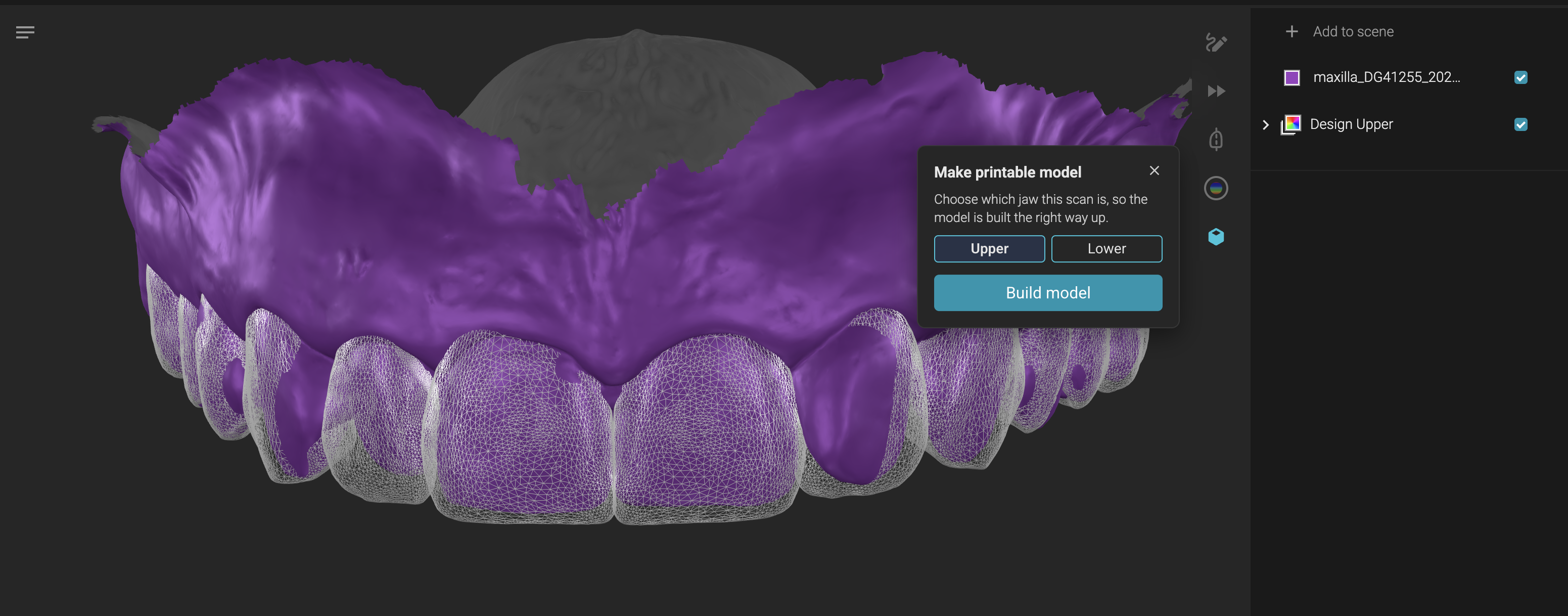
8. A loader appears in the model builder with a preview of the selected elements to create a model from. You can close the model builder, you can even leave the Review project and continue working in Smilecloud. Upon completion you will be notified and given the option to reveal the model, taking you back into the Review project with the model ready.
9. Feel free to download the model from Model Builder pop-up window button or you can download it by selecting it in the sidebar and pressing the Download button at the top of the Review project.
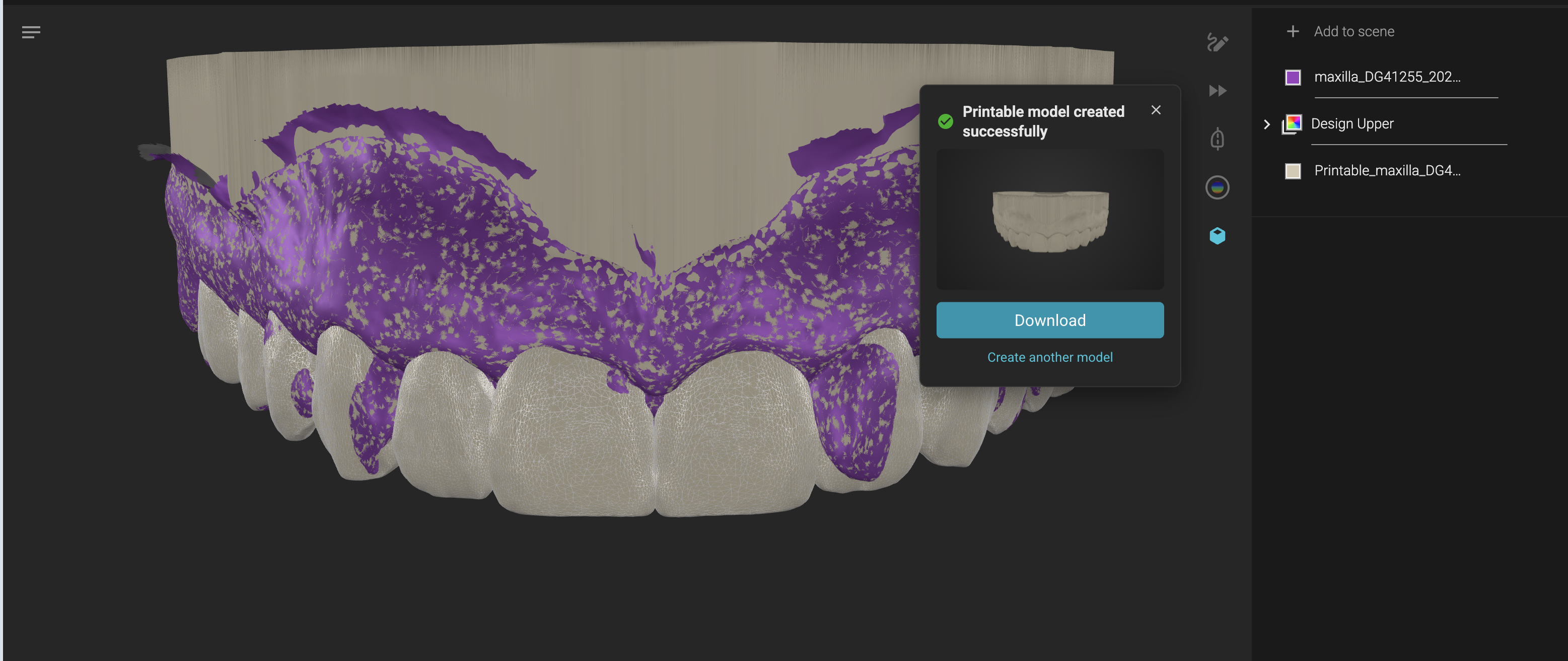
Advantages: Fewer requirements than the segmented workflow for model builder.
Disadvantages: In reductive cases, you need to reduce the scan manually for now.
Dos and Don'ts:
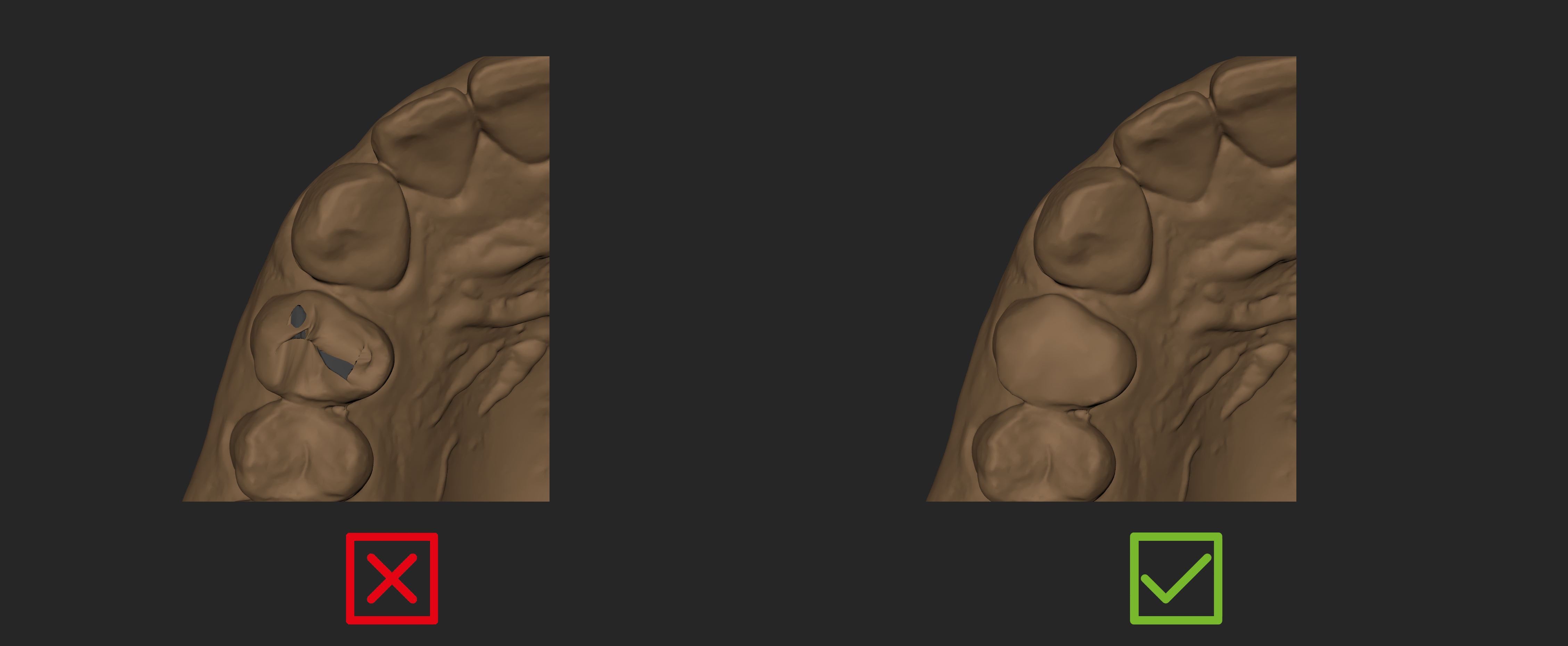
❌Do not use scans with self intersecting surfaces especially on its margins
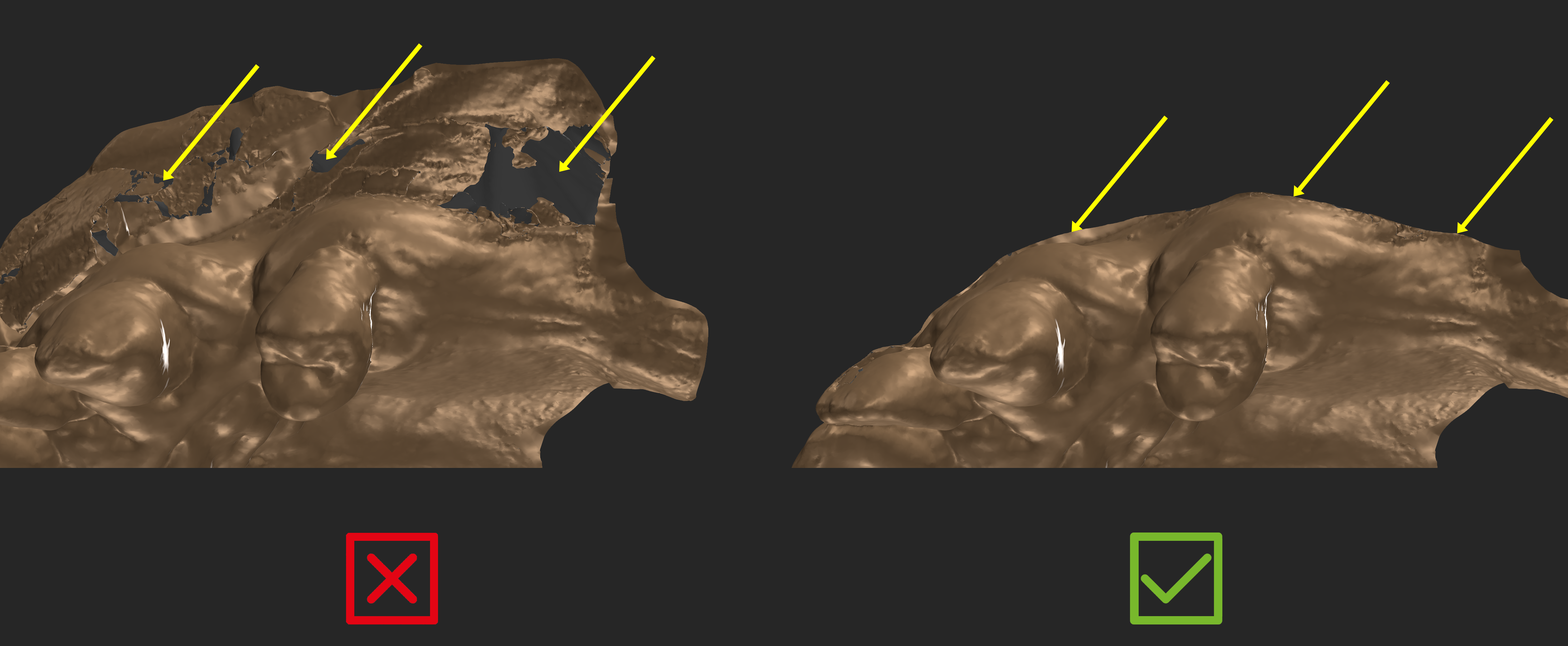
❌Do not use scans with flipped surface normals.
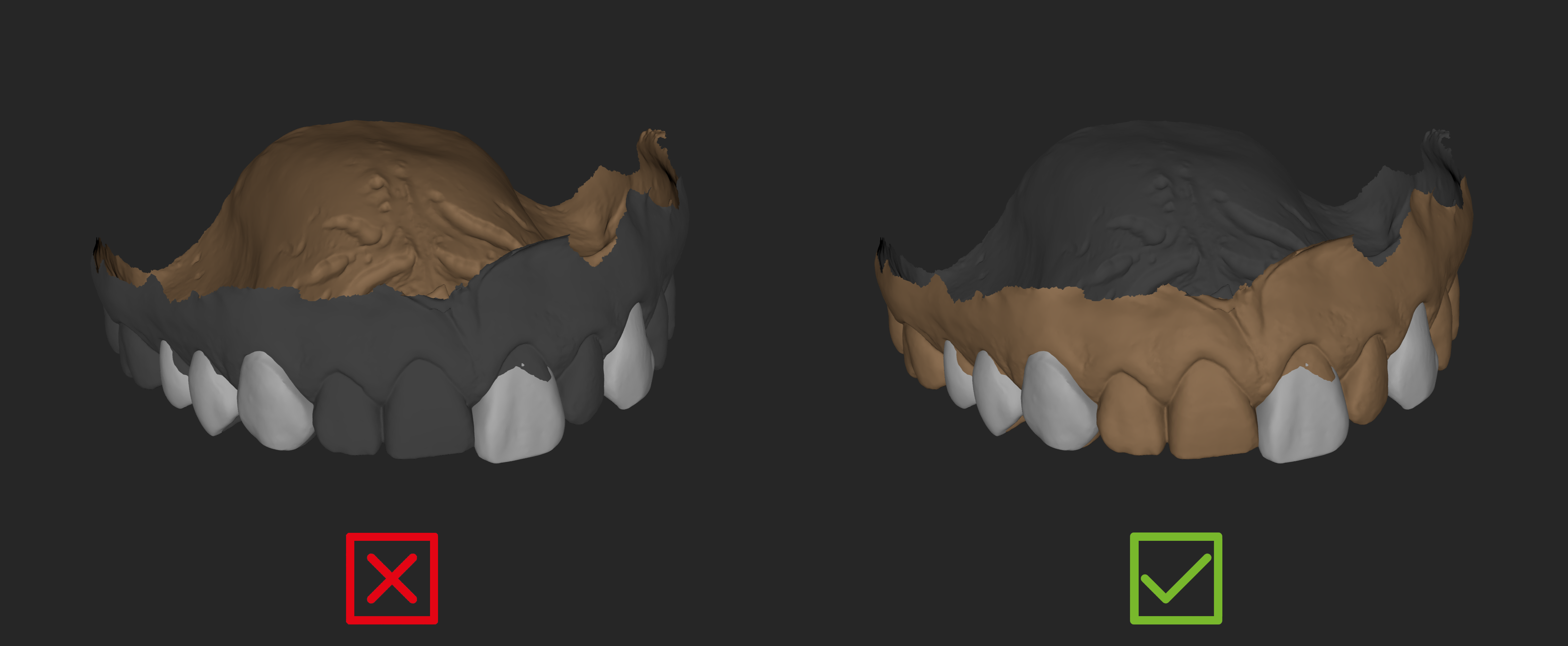
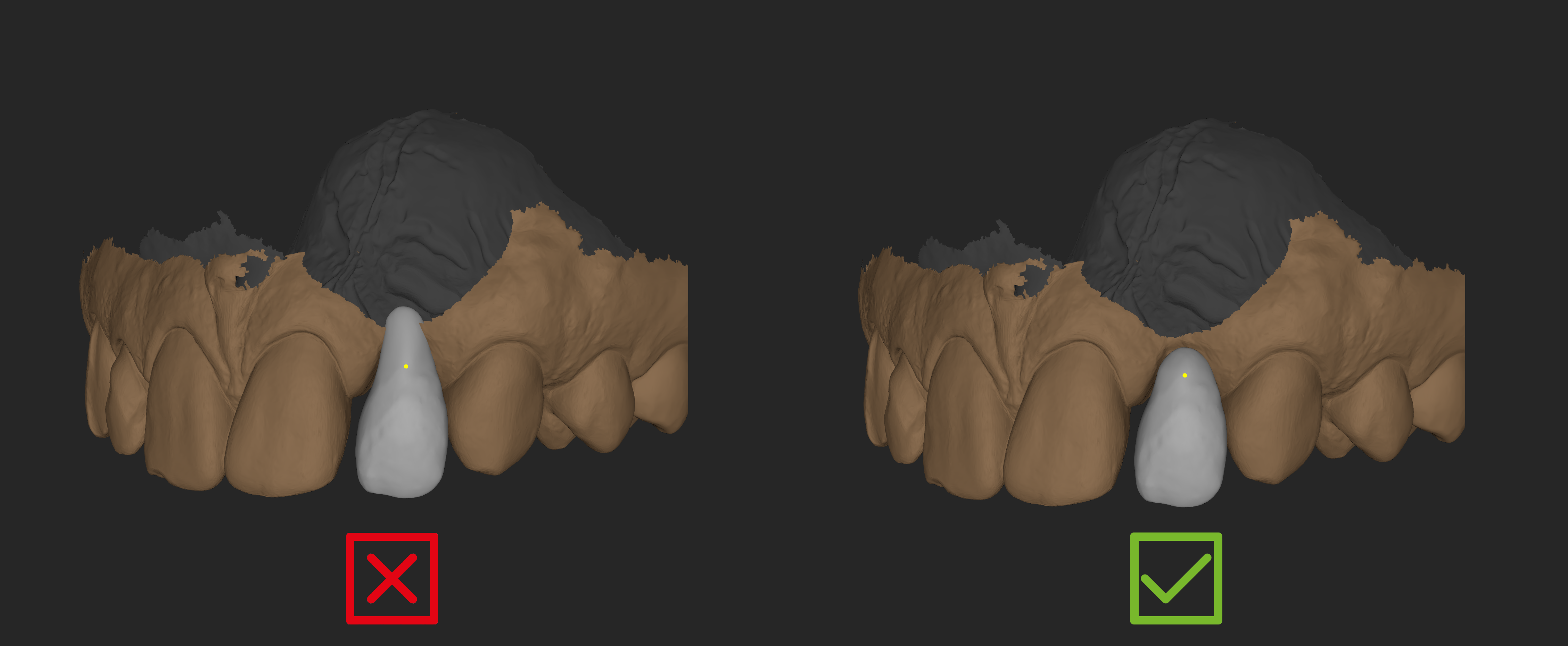
❌Do not position design/align teeth without contact on the unsegmented scan
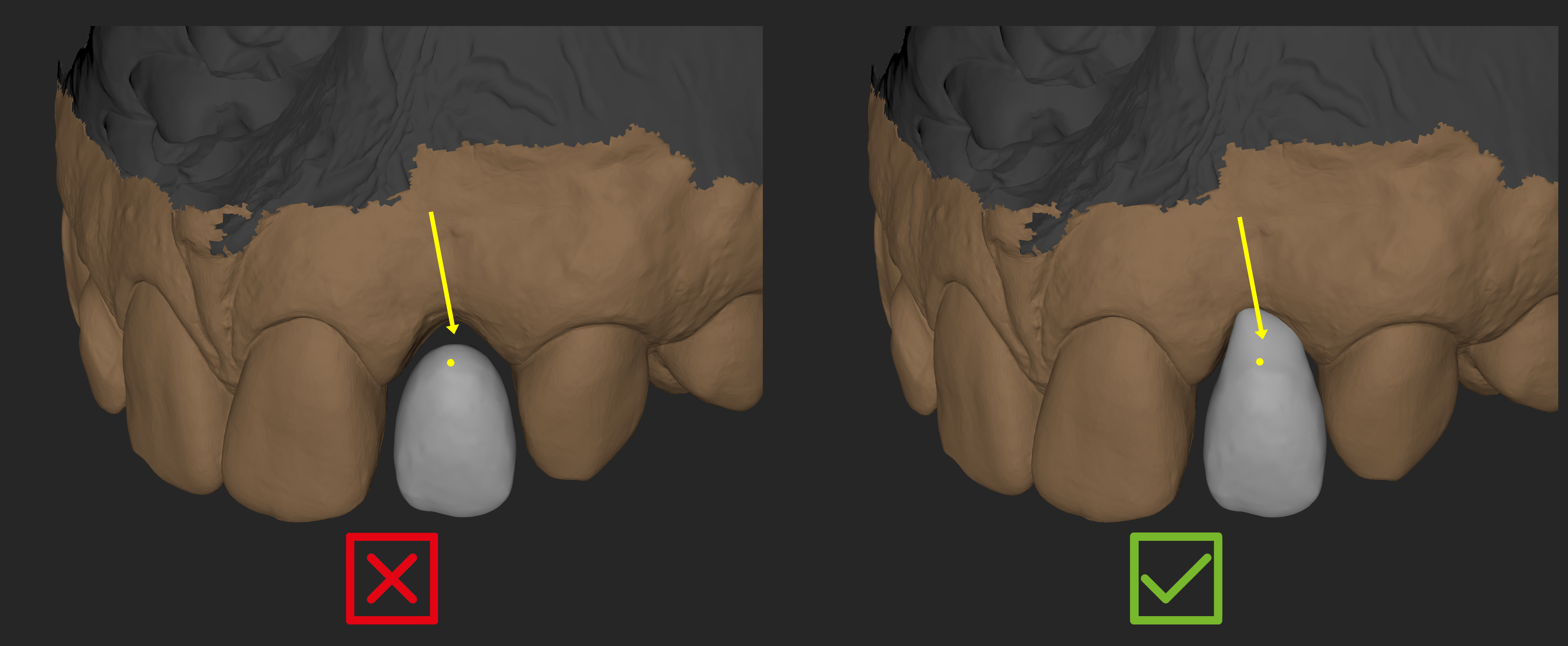
❌Do not position design/align teeth on the very margin of the unsegmented scan
❌ Avoid having holes near the scan margins without sufficient polygons around it.
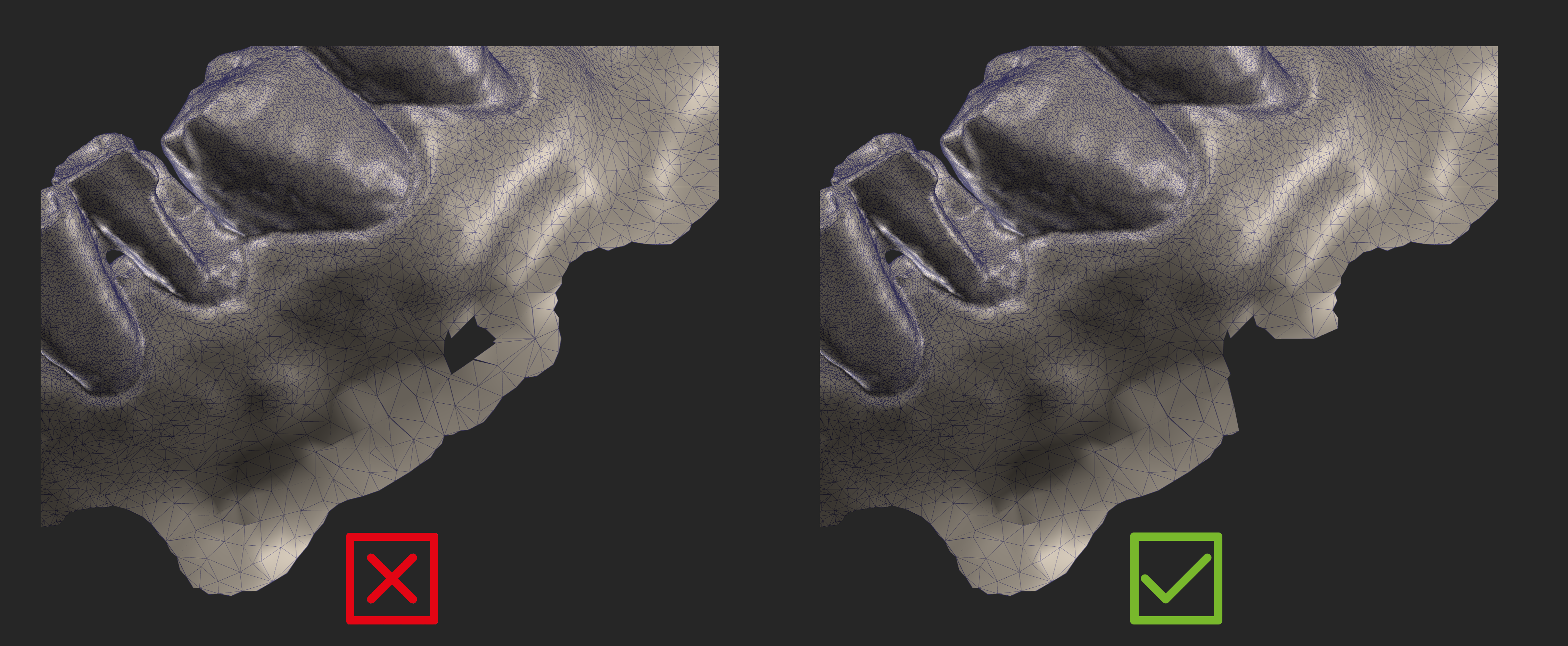
✅ Smooth out any self intersecting surface that you might create during sculpting in blueprint.