Build a model from a segmented ios scan from Blueprint
Best used in workflows for:
- align projects
- all on x cases
This option allows you to create a model from the segmented elements of a blueprint. Best used for cases with fused roots in the blueprint, All-on-X cases or projects that visualize realignment of initial teeth.
Workflow:
1. You need to have a design made in a Blueprint.
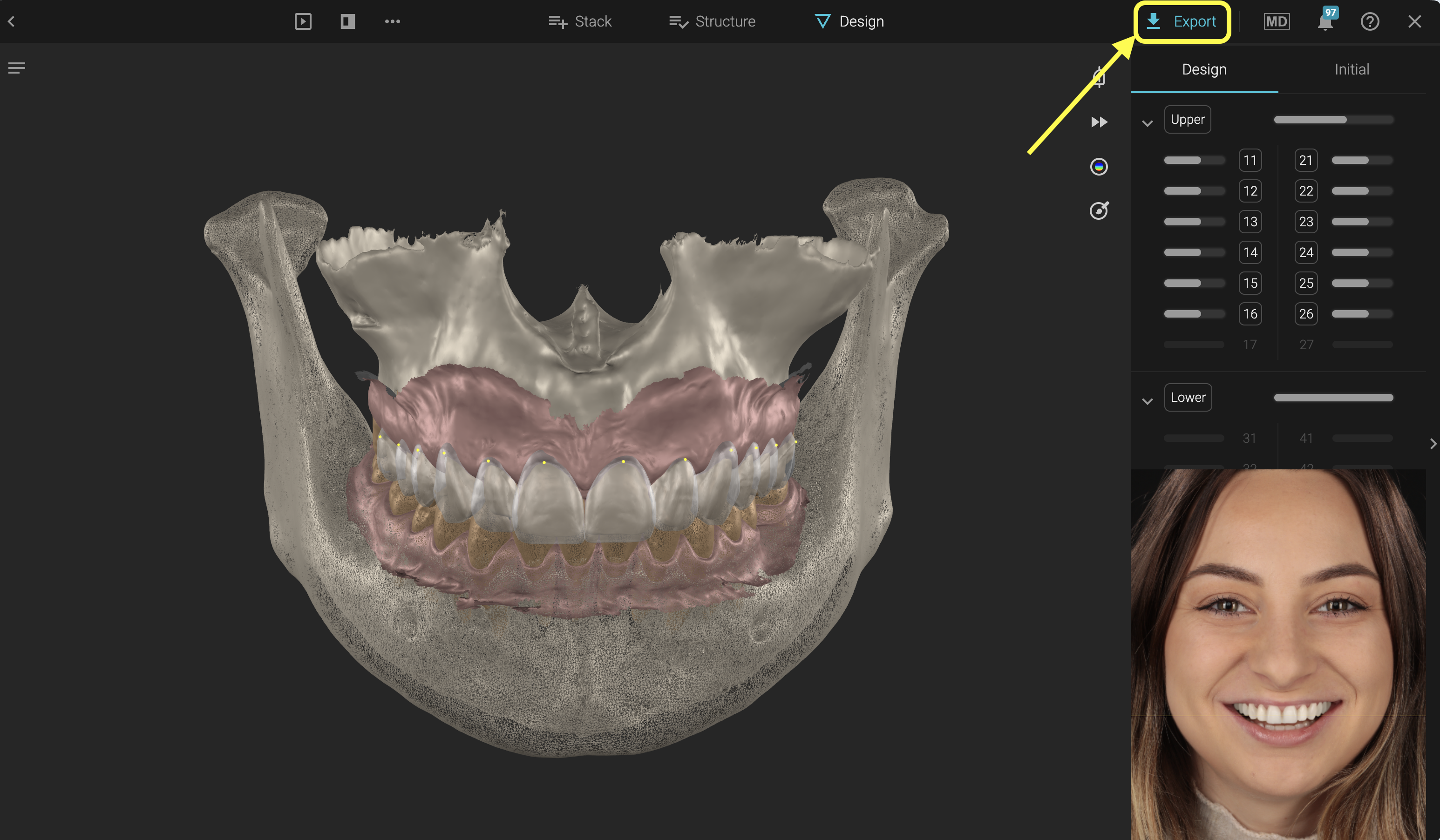
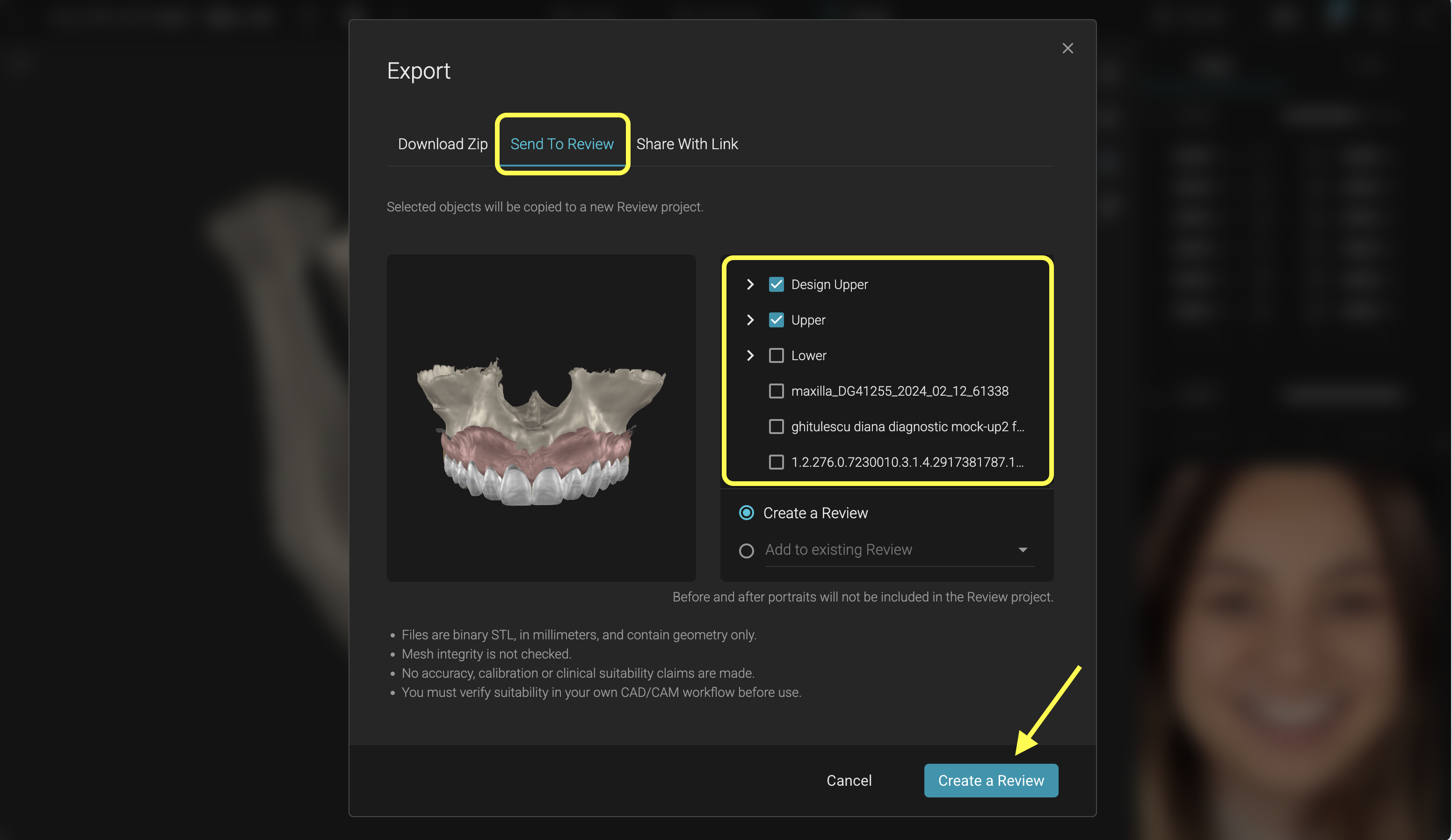
2. In the blueprint, go to the export button. In the pop-up window, select the tab "Send to Review". Select all elements you want to create a review from. We recommend you export all segmented elements as you can refine your selection further in review. Click on Create a Review.
3. The Review project will be created and automatically opened. You should have all exported elements as groups (Upper/ Lower, Design Upper/Design Lower, Aligned Upper/Aligned Lower)
4. Open the Model Builder tool.
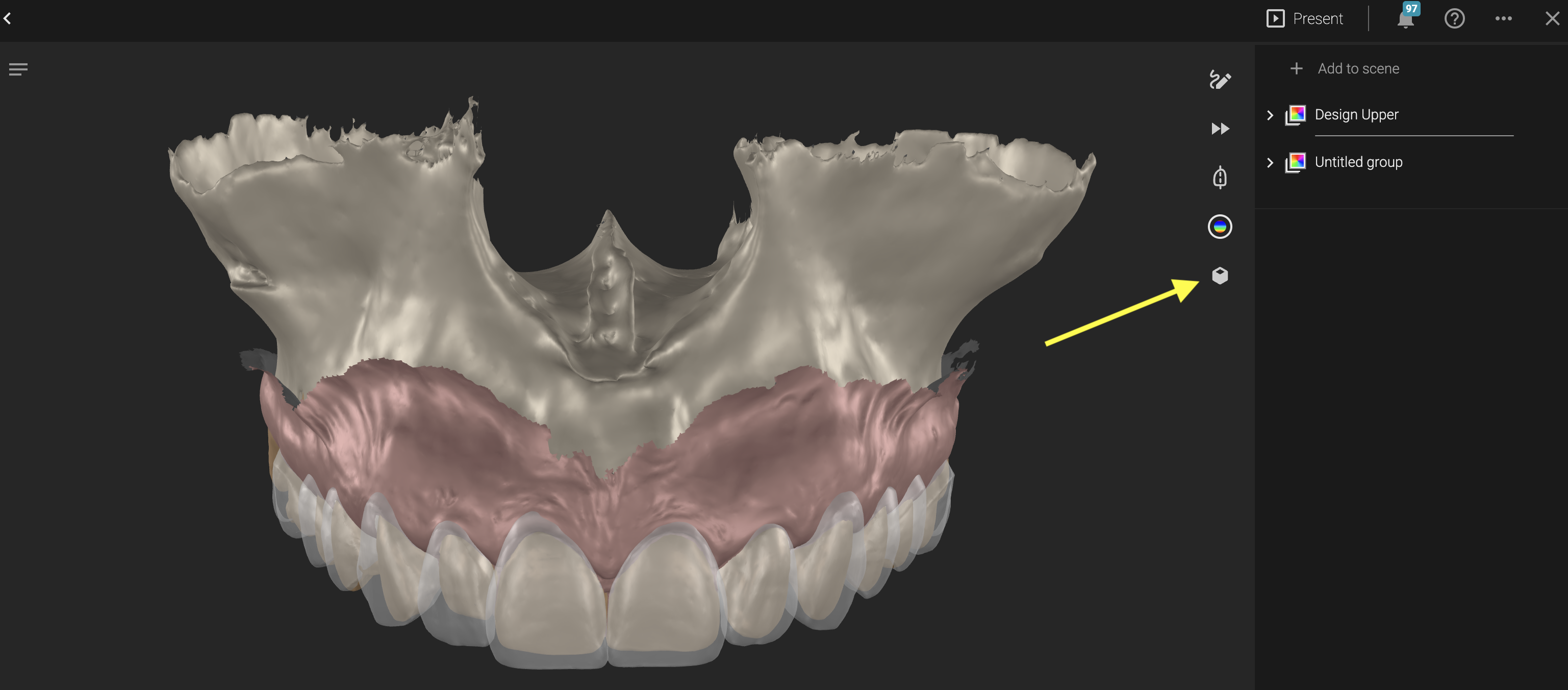
5. Select a blueprint exported group. Once this is selected, you are only allowed to select compatible groups. Example: Selecting a group belonging to the upper jaw (Upper) will only allow you to select other upper related groups (Align Upper, Design Upper). The "Build Model" button appears after selecting the first group but you can add other groups to the selection as well.
6. Selecting the Upper group will automatically filter out the bone mesh if present in the group. To further refine your selection in any group selected, click on the dropdown arrow next to its name and uncheck the elements you do not want in your model
7. Once happy with the selection, simply press Build Model. \
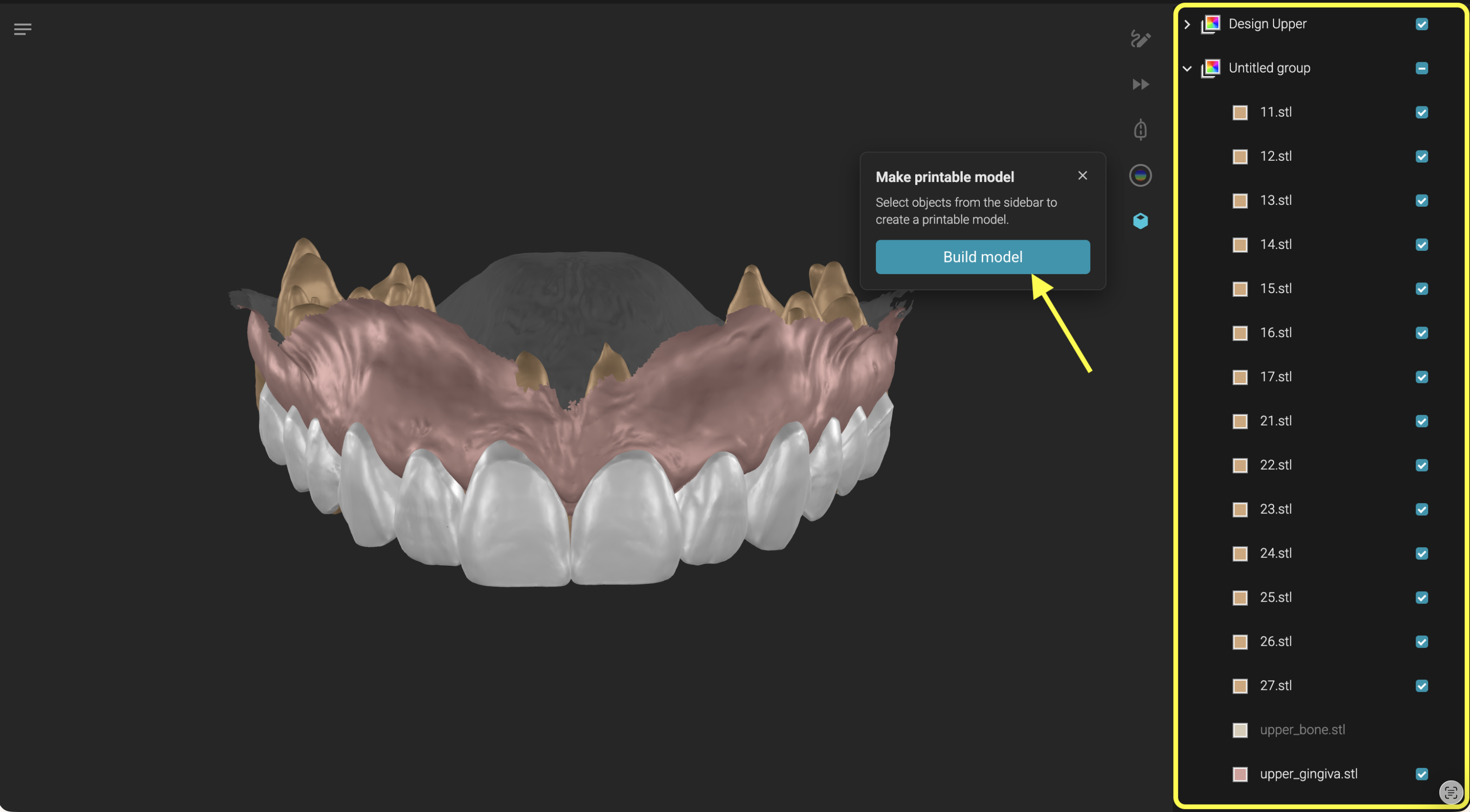
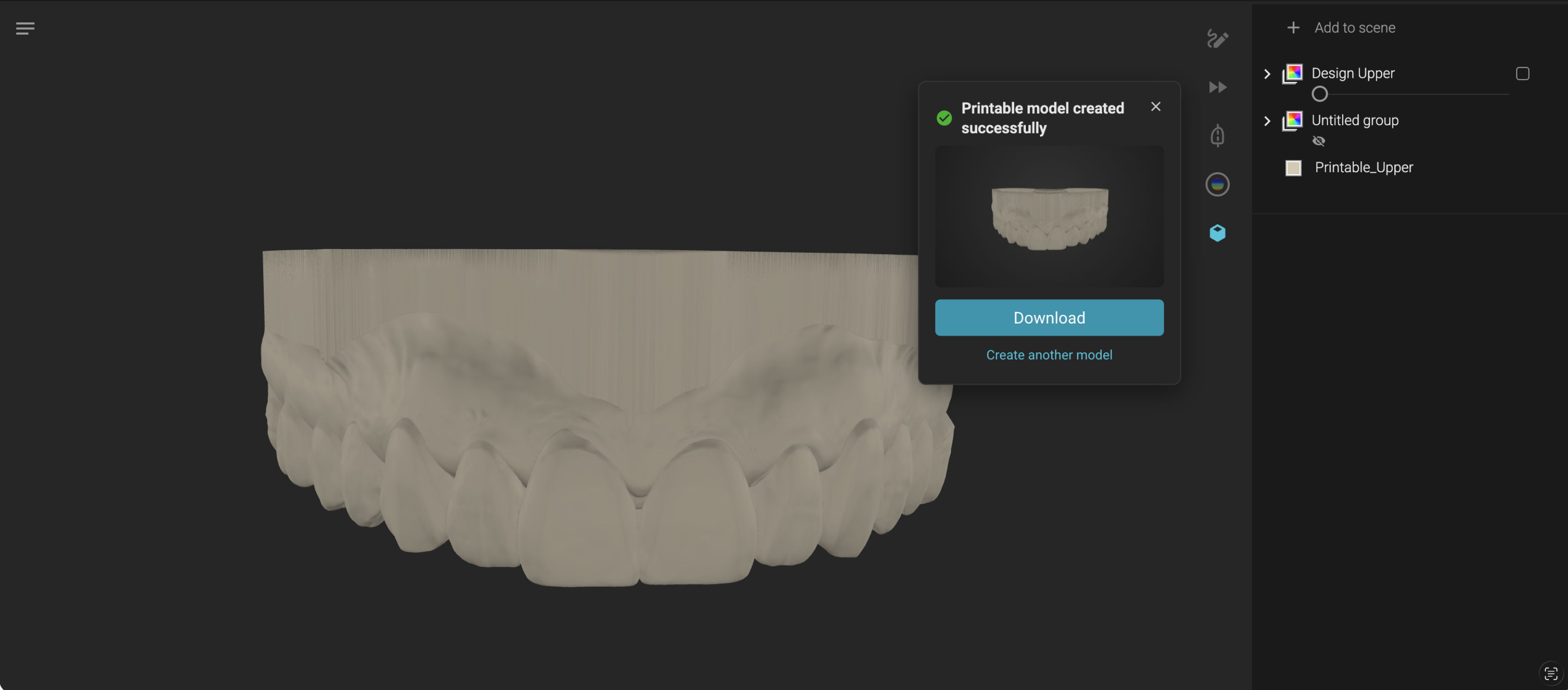
8. A loader appears in the model builder with a preview of the selected elements to create a model from. You can close the model builder, you can even leave the Review project and continue working in Smilecloud. Upon completion you will be notified and given the option to reveal the model, taking you back into the Review project with the model ready.
9. Feel free to download the model from the Model Builder pop-up window button or you can download it by selecting it in the sidebar and pressing the Download button at the top of the Review project.
Advantages: You can be selective with the teeth you want in the model: design, align and initial teeth
Disadvantages: You need a general understanding of how union operations work in order to avoid creating failing edge cases when fusing the teeth back to the gingiva
Dos and don'ts:
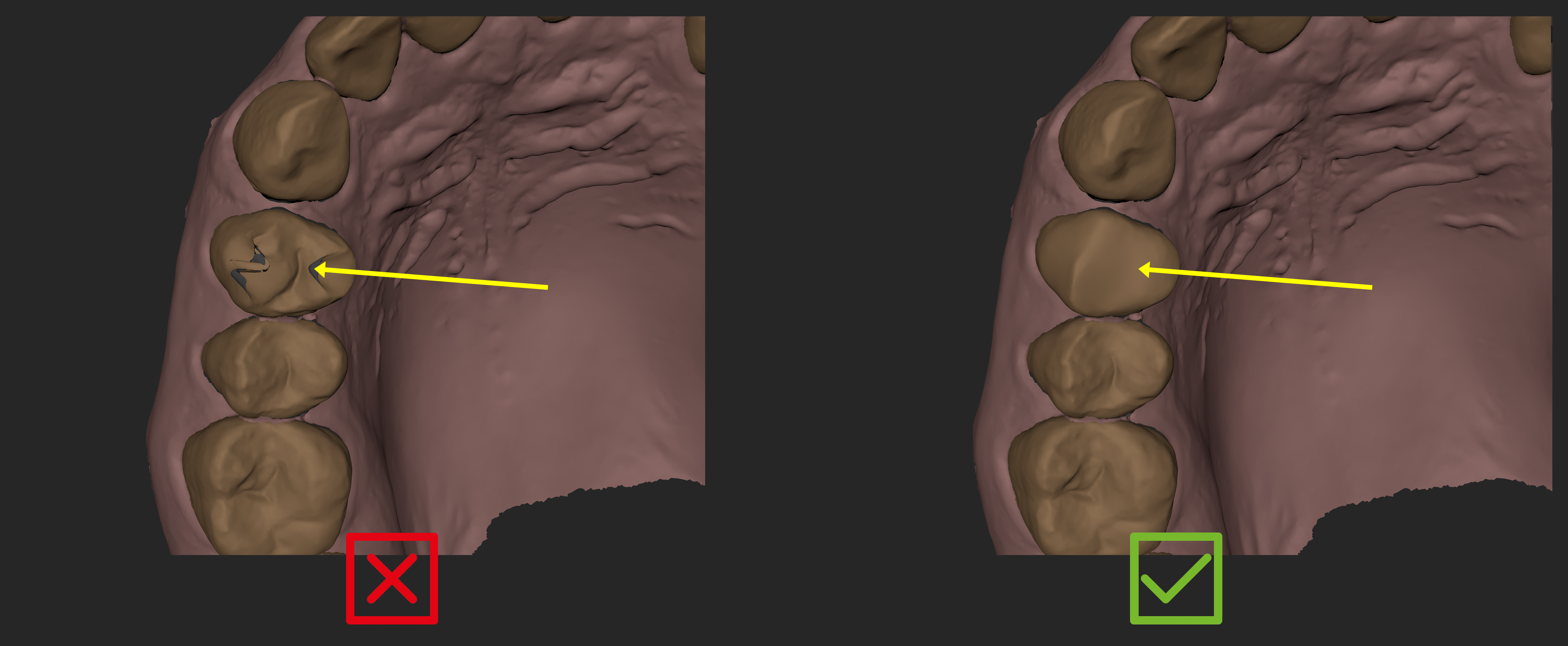
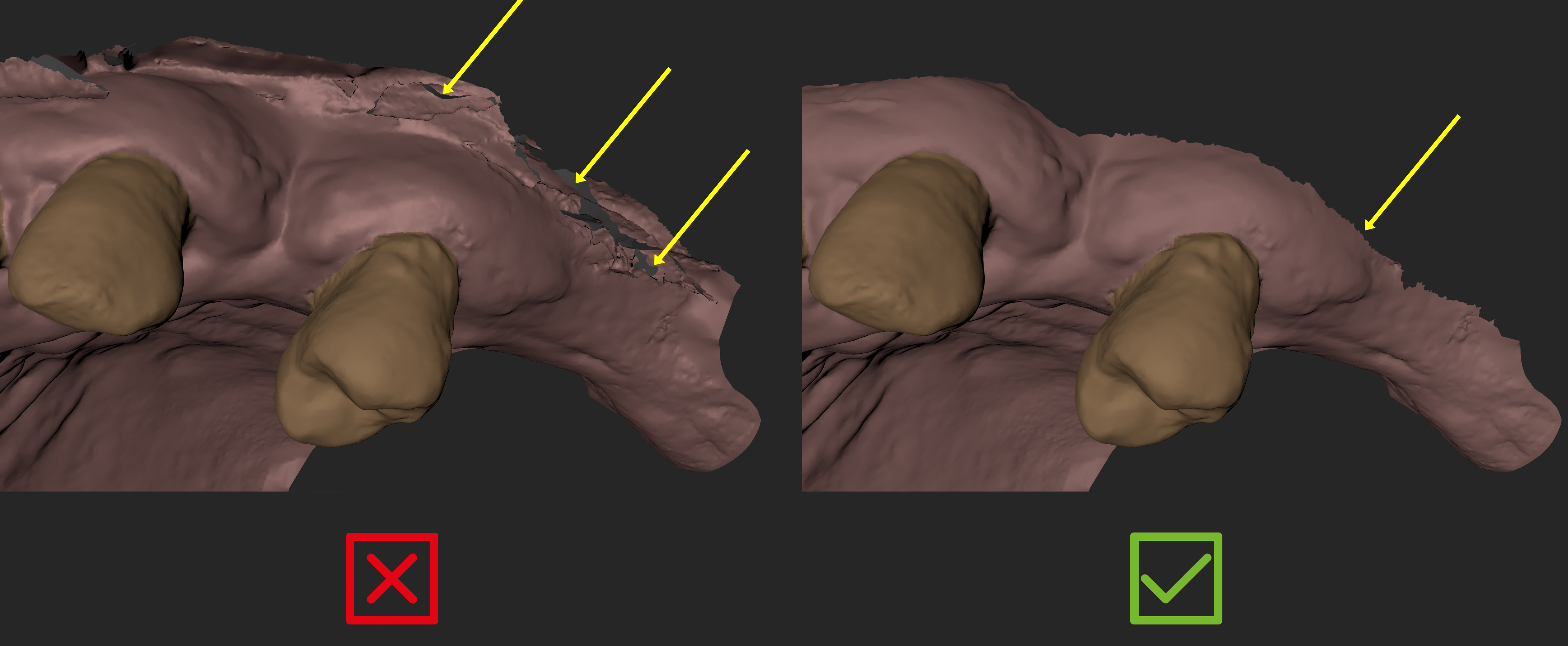
❌ Do not use scans with self intersecting surfaces especially on the margins of the gingiva scan.
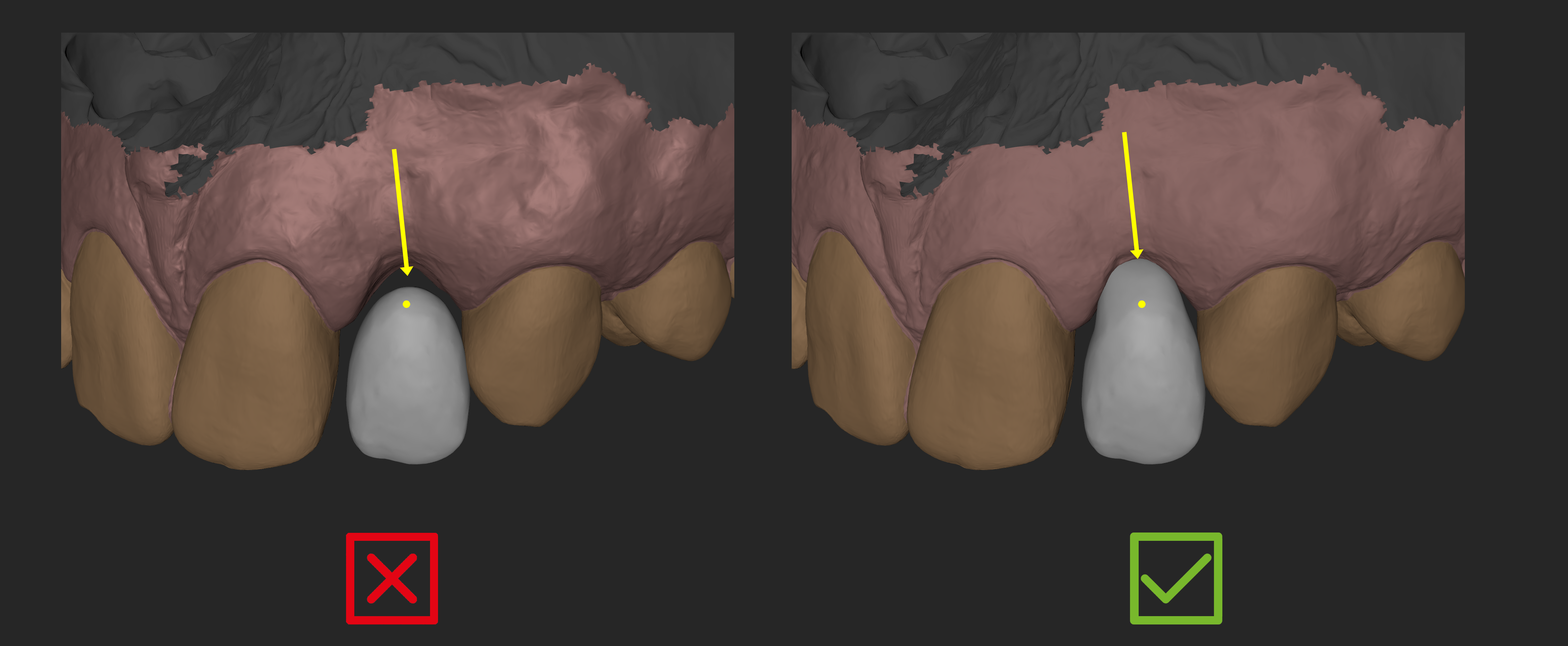
❌ Do not position design/align teeth in a way that there is no contact to the scanned gingiva mesh.
❌ Do not position design/align teeth on the very margin of the scanned gingiva mesh.
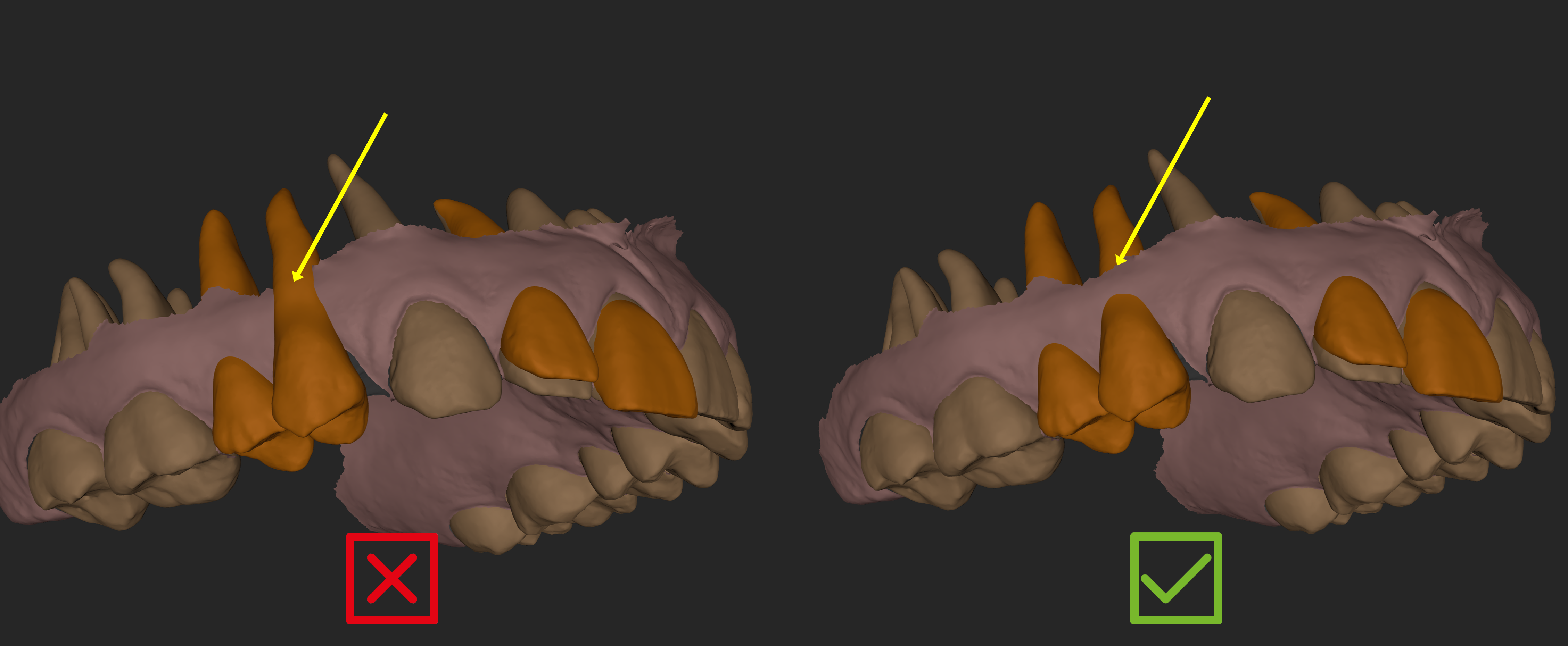
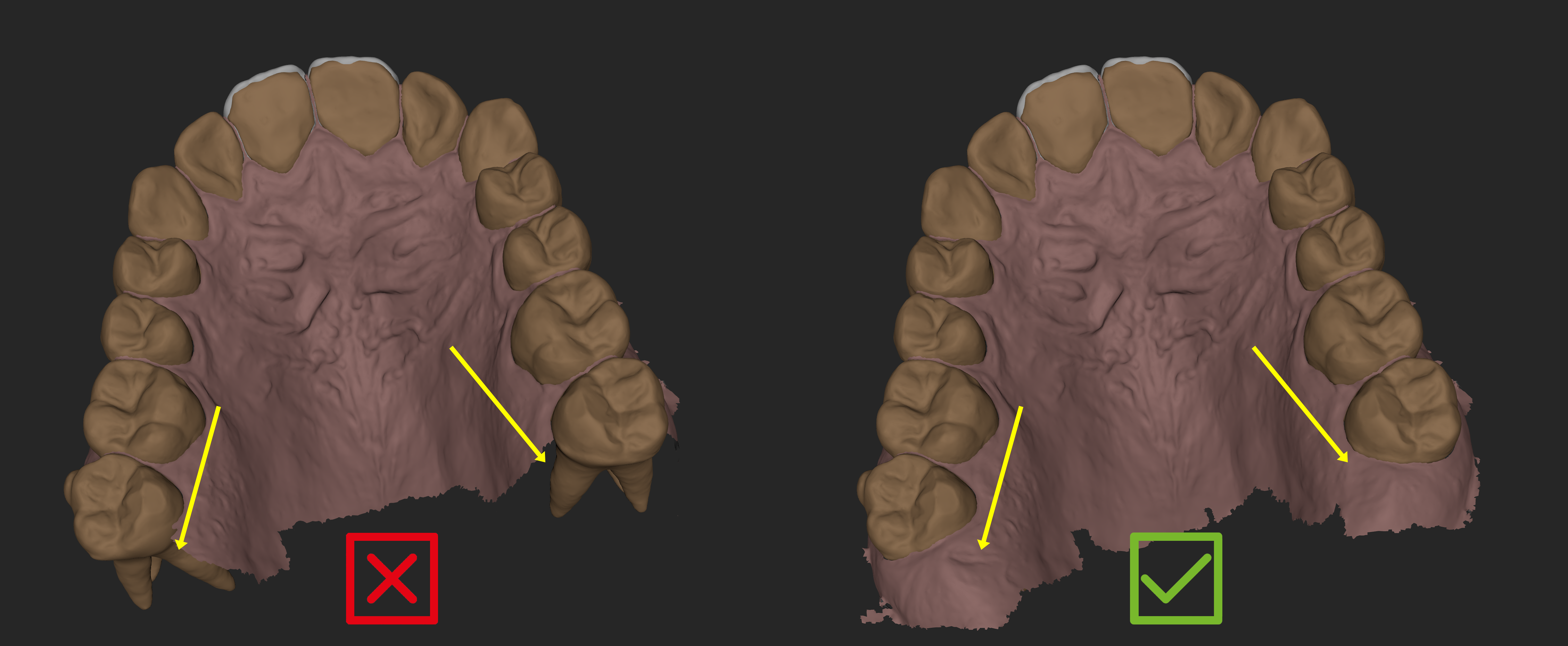
❌ Avoid this edge case if your scan does not have enough gingiva in the posterior area.
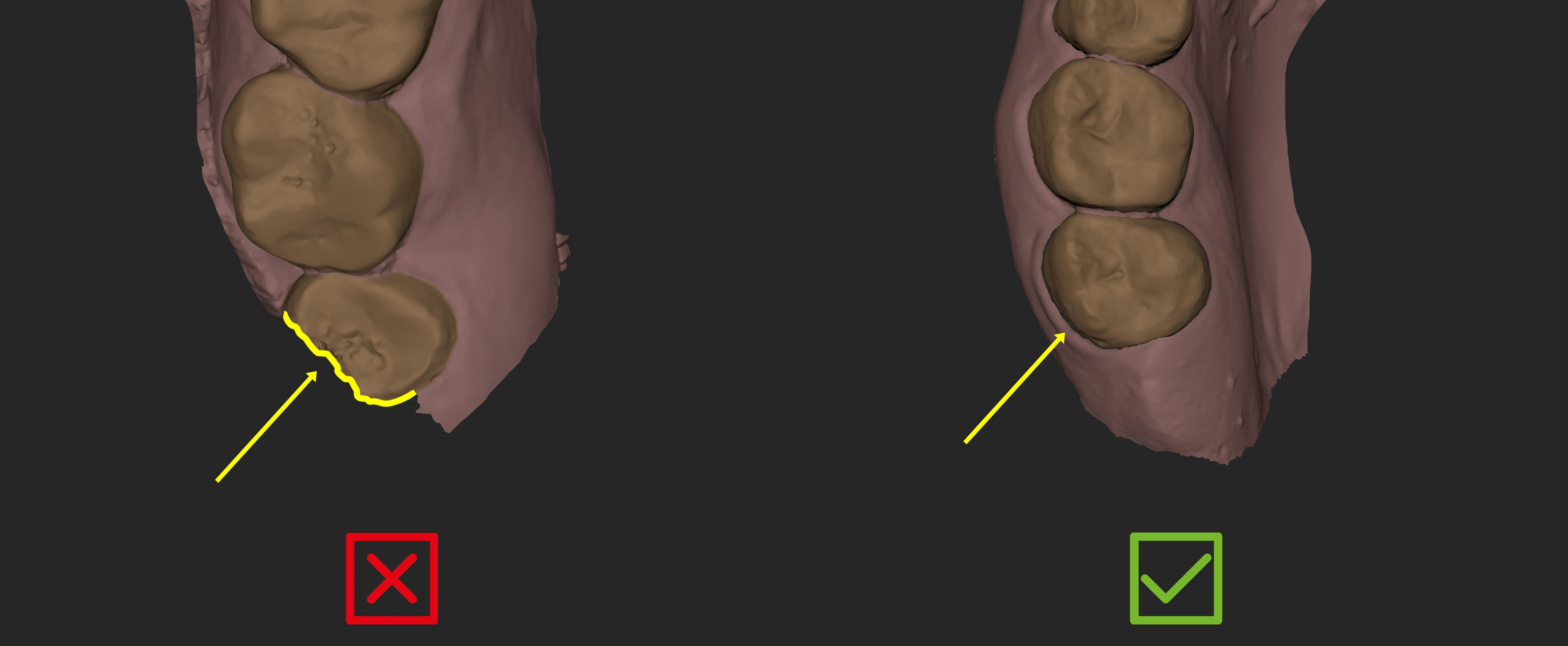
❌ Avoid this edge case if your scan ends with an incomplete/small segmented tooth or you can try to eliminate it from the model builder selection.
❌ Avoid having holes near the scan margins without sufficient polygons around it.
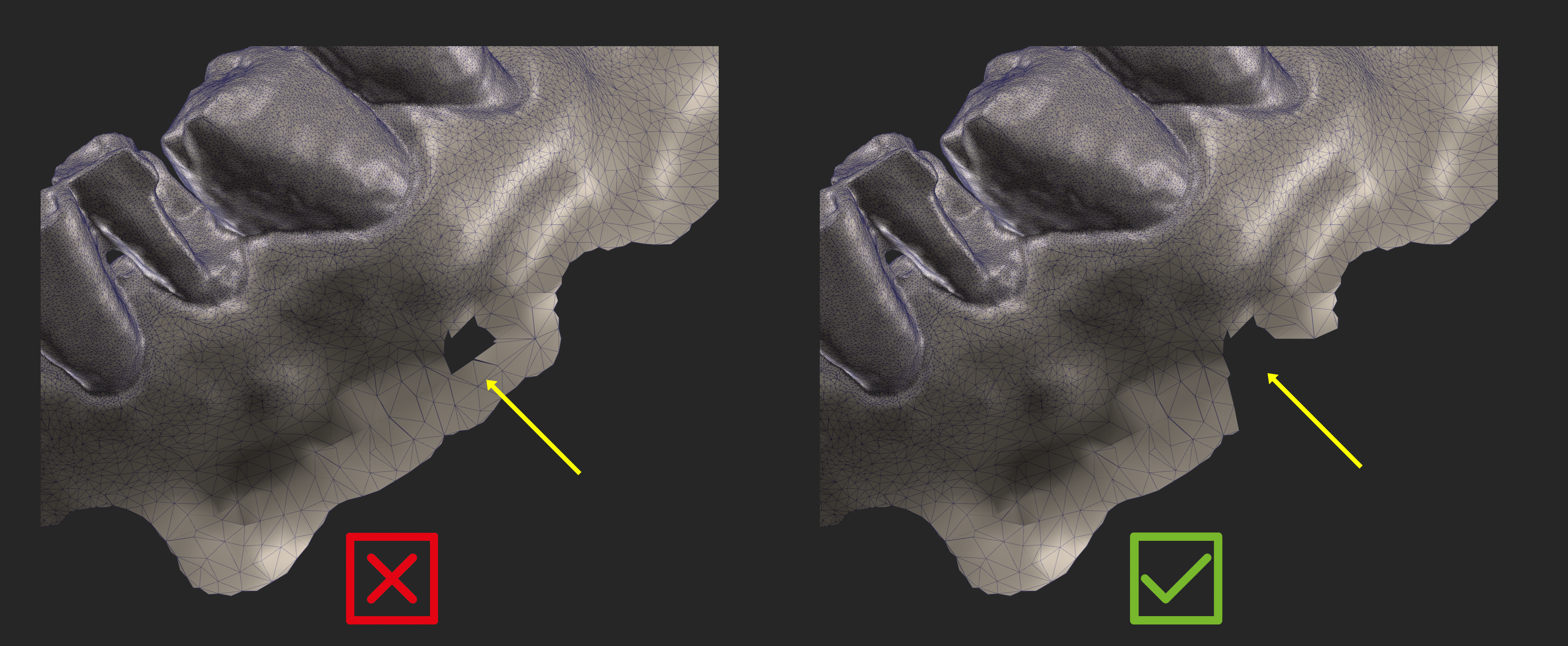
✅ Smooth out any self intersecting surface that you might create during sculpting in blueprint.